Android SafetyCore: Disable Photo Scanning in 60 Seconds
SafetyCore is not spyware — it's a dormant on-device classifier. Here's how to turn off photo scanning in Google Messages on stock Android and Samsung in under a minute.
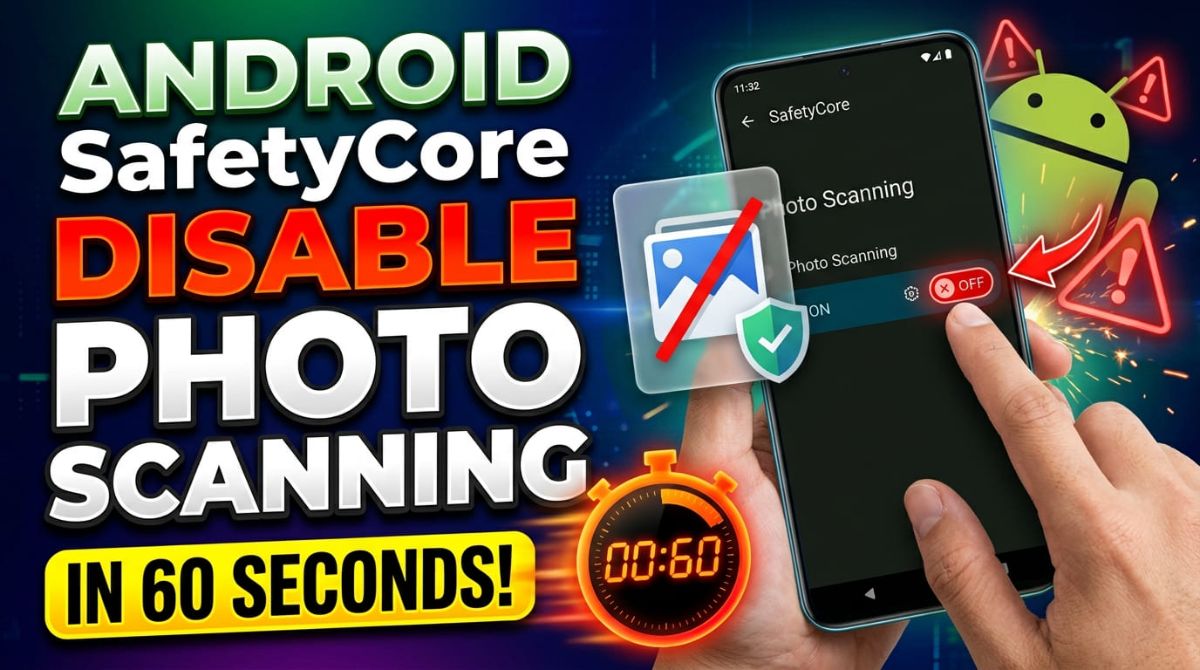
Quick Answer: Google did not secretly install spyware — Android System SafetyCore is a Google system service that classifies content entirely on your phone, and the only photo-scanning feature it powers (Sensitive Content Warnings in Google Messages) is off by default for adults. You can switch it off in about a minute under Messages settings > Protection & safety, without uninstalling anything.
By the TechGamer App Review Team · Published November 7, 2026
In October and November 2026, posts on Facebook, Instagram, and YouTube began urging Android users to open Settings > Apps and delete a "hidden" app called Android System SafetyCore, claiming Google was quietly scanning private photos. The panic is understandable — an unfamiliar system app with no icon does look suspicious. The actual story, confirmed by Forbes and the privacy-focused OS project GrapheneOS, is far less alarming, and the off switch is easier to find than the viral posts suggest.
What Android System SafetyCore Actually Is
According to Google's official documentation, Android System SafetyCore (package name com.google.android.safetycore) is a Google system service for Android 9 and newer devices. It provides "privacy-preserving on-device support" for Android safety features. It arrived quietly through Google Play system updates, which is why most people never saw an install prompt.
The key claims from Google's own documentation:
- Content classification runs exclusively on your device, and the results are not shared with Google.
- SafetyCore is dormant by default. It only becomes active when an app on your phone specifically requests that content be classified.
- Google recommends keeping it installed so you don't miss safety features, but it is not required for your phone to function.
Independent security researchers reached the same conclusion. As Forbes reported, GrapheneOS — a project with no reason to defend Google — confirmed that SafetyCore does not provide client-side scanning that reports to Google's servers.
It is also worth knowing that deployment is limited: the service targets devices with at least 2GB of RAM, which per Ars Technica covers virtually every working Android phone sold in recent years, including the Android Go lineup.
How to Turn Off Photo Scanning in Google Messages (Stock Android)
SafetyCore itself has no settings page — the feature it powers on most phones is Sensitive Content Warnings in Google Messages. This feature detects and blurs images that may contain nudity before you view them, and warns you before you send or forward similar images, per 9to5Google.
Here is the exact tap path to disable the incoming-photo warnings:
- Open Google Messages.
- Tap your profile picture in the top-right corner.
- Tap Messages settings.
- Tap Protection & safety.
- Tap Manage sensitive content warnings.
- Toggle "Warnings in Google Messages" off.
Two requirements to note: you must be signed in to a Google Account inside Google Messages for the feature to work at all, and detection currently applies to images only — not videos, per Android Authority.
How to Disable Photo Scanning on Samsung Galaxy Phones
Samsung's One UI ships Google Messages as the default texting app on most US Galaxy models, so the steps are nearly identical:
- Open the Google Messages app (not Samsung Messages).
- Tap your profile picture, then Messages settings.
- Go to Protection & safety > Manage sensitive content warnings.
- Turn off "Warnings in Google Messages".
If you use Samsung Messages instead, Sensitive Content Warnings do not apply — the feature is part of Google Messages. Note that Samsung also ships its own separate "Sensitive content" protections in the Gallery and keyboard on some models; those are unrelated to SafetyCore and have their own toggles in Samsung's settings.
| Setting | Where it lives | What it controls |
|---|---|---|
| SafetyCore service | No user-facing settings | On-device classification infrastructure only; dormant unless an app calls it |
| Sensitive Content Warnings | Google Messages > Messages settings > Protection & safety | Blurring incoming nude images and warning before sending/forwarding |
| Teen controls | Google Account settings (unsupervised 13–17) | Whether warnings stay on for the account |
| Family Link | Parent's Family Link app (supervised users) | Managed remotely by the parent; not switchable on the device |
Who Can Turn This Off — and Who Can't
The rules differ sharply by age and account type, according to 9to5Google and Android Authority:
- Adults (18+): The feature is off by default and can be toggled on or off freely in Messages settings. This covers most US readers.
- Unsupervised teens (13–17): Warnings are on by default but can be disabled in the teen's own Google Account settings.
- Supervised users: The toggle cannot be turned off on the device. Parents control it through the Family Link app.
So if the toggle is grayed out on your phone, you are almost certainly on a supervised Family Link account — not a sign that Google has locked you out; it is a parental control working as designed.
| User type | Default state | Can it be turned off? | Where |
|---|---|---|---|
| Adults 18+ | Off | Yes | Google Messages settings |
| Unsupervised teens 13–17 | On | Yes | Google Account settings |
| Supervised users | On | No (on-device) | Parent's Family Link app |
Should You Uninstall SafetyCore? The Honest Trade-offs
You can remove it: go to Settings > Apps, search for "Android System SafetyCore," and tap Uninstall, as MakeUseOf describes. But whether you should depends on what you actually want:
| If you… | Best move | Why |
|---|---|---|
| Are an adult who wants no nudie-blur prompts at all | Turn off "Warnings in Google Messages" | Kills the only visible scanning behavior in under a minute; nothing runs when no app requests classification |
| Want SafetyCore gone from your app list entirely | Uninstall via Settings > Apps (Google recommends keeping it) | Removes the service, but it can silently reinstall via Play system updates, and other Android safety features may need it later |
| Share a plan with teens or a supervised user | Leave it installed; manage via Family Link | The on-device toggle is locked for supervised accounts by design |
| Want maximum privacy regardless | Disable warnings and uninstall | Belt-and-suspenders; GrapheneOS-confirmed that the service doesn't report to Google either way |
Our recommendation for most US Android users: leave SafetyCore installed and just flip the Messages toggle off. Uninstalling buys you little, since Google Play system updates can bring it back, and Google states the service only runs when an app explicitly asks it to classify content.
Separating the Viral Claims From What Google Documents
Most of the October–November 2026 posts mix a true observation with a false conclusion. Here is the claim-by-claim reality:
| Viral claim | Reality | Source |
|---|---|---|
| "Google secretly installed an app on your phone" | True that it arrives without a prompt — via Play system updates — but it is a documented, public system service | Google support |
| "It scans your private photos" | It classifies content only when an app like Google Messages requests it; results stay on-device | Google support |
| "Your photos are being sent to Google" | Google states no classified content or results reach its servers; GrapheneOS agreed | Forbes |
| "You can't turn it off, only delete the app" | Adults can disable the actual feature in six taps; uninstalling is optional | MakeUseOf |
Frequently Asked Questions
Is Android System SafetyCore spyware?
No. Google documents it as an on-device classification service that only activates when an app requests it, and GrapheneOS independently confirmed it does not report scanning results to Google.
Why does SafetyCore appear on my phone with no icon?
It installs through Google Play system updates on Android 9+ devices rather than through a Play Store download prompt, so most users never see a notification. It runs in the background with no launcher icon.
How do I stop my Android phone from scanning photos?
Open Google Messages, tap your profile picture, go to Messages settings > Protection & safety > Manage sensitive content warnings, and toggle "Warnings in Google Messages" off. That is the only photo-scanning behavior SafetyCore powers for most users.
Can I uninstall Android System SafetyCore?
Yes — Settings > Apps, search for "Android System SafetyCore," then tap Uninstall. Google recommends keeping it, and Play system updates may reinstall it later.
Does SafetyCore scan my entire photo gallery?
No. Classification happens when an app that integrates with SafetyCore requests it — currently Google Messages, on received or outgoing images in chats. It does not sweep your Gallery or camera roll, and it does not process videos.
Why can't I turn off Sensitive Content Warnings?
If the toggle is unavailable, your account is likely a supervised Family Link account. Supervised users cannot disable it on-device; parents control it through the Family Link app. Unsupervised teens 13–17 can disable it in Google Account settings.
Does turning off SafetyCore affect anything else on my phone?
The core phone functions are unaffected either way. Google recommends keeping the service so you don't miss future Android safety features that may build on it, but nothing currently requires it to boot or run your device.
Disclosure
This article is independent and based solely on the published sources listed below. It contains no affiliate links and no sponsorship, and we have not received compensation from Google or any other company mentioned.
Sources
- Google – Understanding Android System SafetyCore
- 9to5Google – Google Messages rolls out Sensitive Content Warnings on Android
- MakeUseOf – How to Disable the Android Photo Scanner
- Android Authority – Google rolls out sensitive content warnings for nudes in Messages
- Ars Technica – Google Messages can now blur unwanted nudes
- Forbes – Google Update Checks Photos For Sensitive Content
- Facebook – Viral post urging users to uninstall SafetyCore (Oct–Nov 2026)